ElevenLabs App Video Captions: Bilingual Translation, Scribe, Colors, Pricing
Learn how to use the new ElevenLabs Video Captions feature on iOS, Android, and Studio 4.0, including the two-week unlimited promo, Scribe v2 timing, speaker colors.
Summary
- Turn on Video Captions directly in the ElevenLabs iOS and Android apps or on the Studio 4.0 timeline.
- Use Scribe v2 for character-accurate word highlighting, one-tap filler word removal, and automatic speaker color-coding.
- Overlay translated or bilingual subtitles without replacing your original audio track, and see how ElevenLabs compares to CapCut Auto Captions on punctuation.
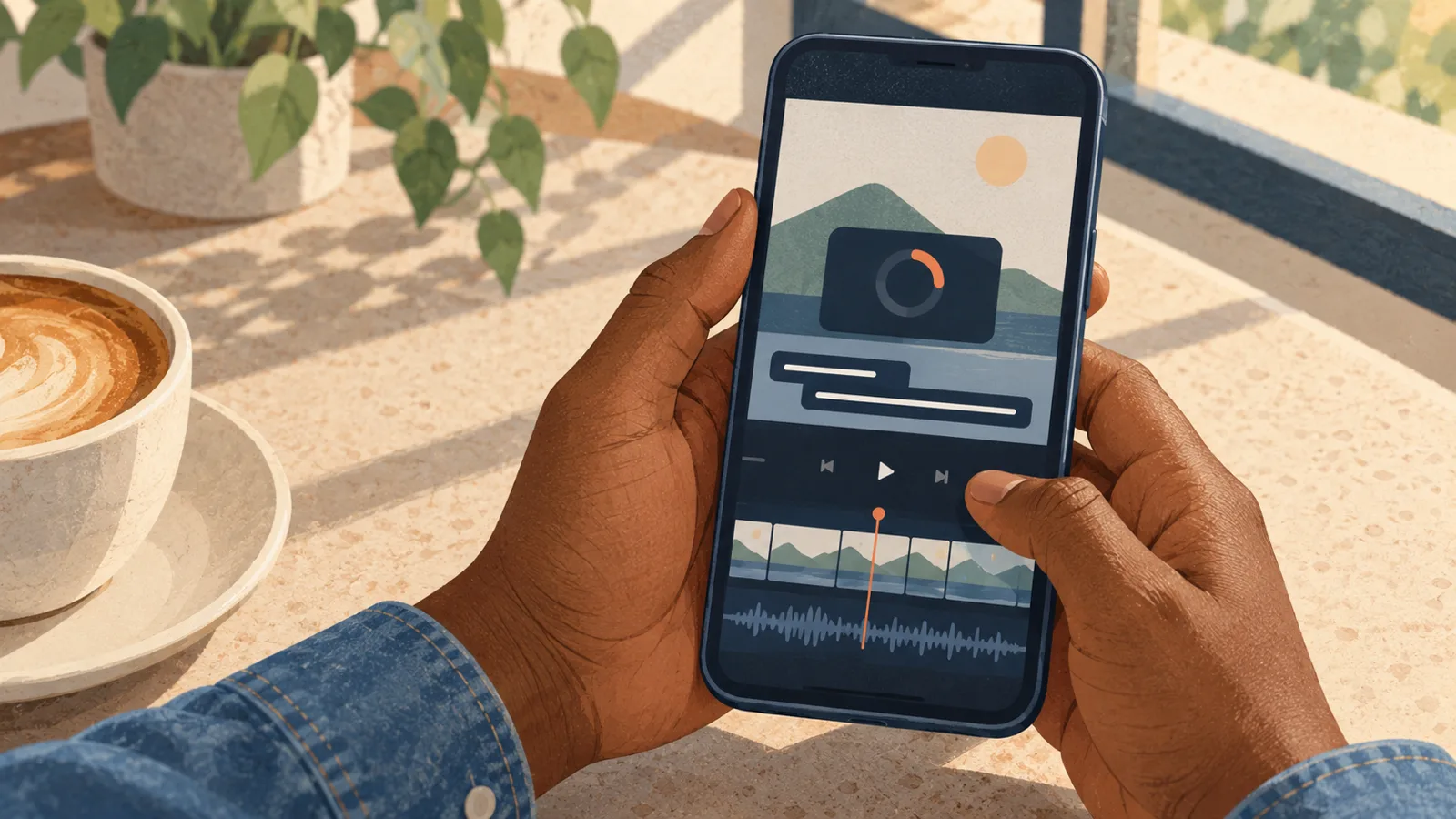
If you want to add burned-in subtitles or translated captions to a video in ElevenLabs without dubbing over your original voice, you no longer have to export an audio file and stitch an SRT back together in another editor. ElevenLabs now has a built-in Captions feature inside the ElevenLabs mobile app on iOS and Android, alongside a dedicated caption sub-track in Studio 4.0 on the web.
To turn it on from your phone, update the ElevenLabs iOS or Android app to the latest build, tap the Captions option from the main creation screen, and import a video from your camera roll. Once the clip loads, pick your spoken language, choose whether you want same-language captions or a translated subtitle track, and let the app run the transcription. Right now, mobile subscribers get two weeks of unlimited free video captioning inside the iOS and Android apps, meaning you can run as many clips through the mobile caption generator as you want during that two-week window without burning through your monthly character credits.
If you prefer working on a larger screen, opening the same project in ElevenLabs Studio 4.0 puts those captions onto an independent subtitle sub-track below your audio waveform. Instead of locking the text into the video frames immediately, Studio 4.0 lets you edit individual words, split or merge caption blocks, and drag the start and end handles directly on the timeline.
On this page
How Scribe v2 Handles Character-Accurate Timing and Filler Words
Most mobile captioning apps run a compressed Whisper model that guesses word boundaries after transcribing a whole sentence. That is why fast speakers often outrun the highlighted word on screen by half a second. ElevenLabs Video Captions runs on Scribe v2, which predicts character-level and word-level timestamps during the initial transcription pass and feeds those exact coordinates into the mobile GPU style editor.
When you pick an active-word highlight template in the mobile editor, the color box snaps to each syllable as it is spoken. In the GPU style editor, you can scale the text, change fonts, adjust background pills, and drag the caption block anywhere on the vertical canvas without frame drops during playback preview. You also get a one-tap filler word toggle that strips out spoken pauses like "um" and "uh" from the visible subtitle track while leaving the underlying video and audio untouched.
The reason Scribe v2 feels so tight on uploaded video clips is that the app processes the full audio track in a single batch pass. When I feed Scribe v2 a complete 16 kHz mono audio track with music and silence left intact, the built-in word timestamps are accurate enough that I never run a second local forced-alignment pass. I only flag unusually long cues or sudden timestamp jumps and inspect those specific spots against the waveform.
Where Scribe v2 timing can drift is if you build a custom live captioning workflow using the scribe_v2_realtime WebSocket endpoint (wss://api.elevenlabs.io/v1/speech-to-text/realtime) with voice activity detection enabled (commit_strategy=vad). In that realtime VAD mode, every completed VAD segment adds roughly 100 milliseconds of cumulative delay to all subsequent word timestamps. On a 25-second test timeline where the final word starts at 18.210 seconds, a single VAD segment returns 18.219 seconds (+9 ms), two segments push it to 18.319 seconds (+109 ms), and three segments push it to 18.419 seconds (+209 ms). Switching commit_strategy from vad to manual commits brings all three segments back within 9 to 10 milliseconds of the true audio. Inside the ElevenLabs mobile app and Studio 4.0, you are running against pre-recorded video files rather than open VAD streams, so you get the clean batch timestamps out of the box.
Automatic Speaker Color-Coding and the 2-Speaker Limit
One of the standout features in the ElevenLabs mobile caption editor is automatic speaker color-coding. When your video has more than one person talking, Scribe v2 separates the voices and assigns each speaker a distinct text color in the GPU style editor. For two-person street interviews, split-screen reactions, or podcast clips, this saves a ton of manual timeline splitting.
However, if you are captioning a group panel, a roundtable, or a multi-person call, you will hit Scribe v2's diarization ceiling very quickly. While Scribe v2 handles solo videos and two-person conversations effortlessly, its speaker separation falls apart once you have three or more voices in the same file.
When I run clean, studio-recorded clips with 3 to 5 distinct, non-overlapping voices through Scribe v2—whether in the web interface or via the API—it almost always groups everyone into just 2 speaker labels. Out of dozens of runs on a 5-person recording, it might label all 5 speakers once and revert to 2 speakers on every other attempt. You can force the API to split more voices by dropping the diarization_threshold parameter all the way to the minimum, but doing that makes the model over-sensitive and risks splitting a single speaker into multiple color tracks whenever they change their tone of voice.
The drop-off is even clearer on long multi-person recordings. On a 2-hour-22-minute recording with 6 speakers (around 24,871 words), Scribe v2 finishes the full transcription in 88.9 seconds with sharp text accuracy, but its speaker labeling only detects 4 of the 6 people in the room. That puts its speaker time accuracy at 32.8% and word-level speaker accuracy at 34.8%, largely because it merges speakers with similar vocal pitch and misses people who speak up for the first time 40 minutes into the session. By comparison, running speaker diarization through Deepgram or AssemblyAI on that exact same 6-person file catches all 6 speakers at over 90% accuracy.
If your mobile video has one host or two people talking back and forth, turn on ElevenLabs speaker colors and let it run. If you have 3 to 6 speakers on screen, either manually reassign the mislabeled cues on the Studio 4.0 sub-track or run speaker diarization externally and align those labels back to Scribe's word timestamps.
Bilingual and Translated Subtitles Without Changing Your Audio
Before this update, translating a video inside ElevenLabs meant using the Dubbing studio, which muted or ducked your original recording and replaced it with a synthetic AI voice. The Captions tool solves a completely different problem: it translates your spoken dialogue into another language on screen while keeping 100% of your original voice and room audio intact.
In the mobile app, you can generate translated subtitles directly or stack bilingual lines so viewers see both the original transcript and the target language at the same time—similar to the setup I use for dual subtitles on YouTube. On Studio 4.0, you can tweak translated words right on the caption sub-track and adjust the block length if a translated sentence in Spanish or German runs longer than the original English audio. When you need a separate text file instead of burned-in video text, knowing the formatting rules in SRT vs VTT will help you pick the right export for your video player.
Where you need to be careful with translated captions is video length. The mobile Captions app is built for short-form clips and standard social videos. If you use Scribe v2 to transcribe a 1-hour technical lecture, you end up with roughly 2,000 individual subtitle cues. Trying to translate a 2,000-line transcript in one pass—or pushing a video longer than two hours through a Scribe-to-SRT pipeline—almost always fails or produces flat, literal translations that mangle domain-specific terms. For videos over an hour, I keep the transcription and translation steps separate: generate the raw word-timed cues in Scribe v2 first, merge broken sentence fragments so the context is intact, and then translate the file in batches of around 500 cues at a time without altering the original Scribe start and end timestamps.
ElevenLabs Video Captions vs. CapCut Auto Captions
Most creators looking at ElevenLabs Video Captions are deciding whether to switch over from CapCut, or looking for a backup when CapCut Auto Captions stops working or locks a template behind a paywall. After running both side by side on short clips and long recordings, the biggest difference is not just word accuracy—it is punctuation and how each tool slices sentences.
CapCut is fast and rarely hallucinates words during background music, but its auto-caption engine strips out punctuation and chops spoken sentences into short, arbitrary fragments based on pauses. If you only want three words flashing in the center of a TikTok video, CapCut's lack of punctuation does not matter. The moment you try to translate those captions into another language, CapCut's fragmented, unpunctuated lines fall apart because the translator cannot tell where a clause begins or ends. And if you export CapCut's raw text and ask an LLM like Gemini to add punctuation and re-segment the lines by meaning, the original timestamps break—especially on videos approaching one to two hours.
ElevenLabs Scribe v2 outputs full punctuation, proper capitalization, and natural clause boundaries during the initial transcription pass, right alongside its character-level timestamps. That means when you turn on caption translation in the ElevenLabs app or Studio 4.0, the translation engine is reading complete sentences while the video timeline still knows the exact millisecond each word was spoken. Compared to desktop editors I cover in my Descript transcription guide, ElevenLabs gives you a much faster mobile-first GPU styling workflow without forcing you onto a laptop for basic social cuts.
Pricing, Mobile Promo Rules, and Credit Metering
Before you batch-process a folder of videos, make sure you understand how ElevenLabs meters caption usage across mobile, Studio 4.0, and the API:
- Mobile App Two-Week Unlimited Promo: If you have an active subscription in the ElevenLabs iOS or Android app, generating video captions inside the mobile app is currently unlimited and free for two weeks following the feature launch.
- Standard Studio 4.0 and Post-Promo Metering: Outside the mobile promotional window, Scribe v2 transcription and Studio 4.0 caption generation draw from your plan's monthly credit pool (billed by audio duration and character output depending on whether you run STT alone or combine it with translation). On the Creator plan, standard Scribe batch transcription covers roughly 48 hours of audio per month.
- The Realtime SDK Billing Trap: If you also use your ElevenLabs account to run
scribe_v2_realtimethrough the official SDK (such as the React SDK withcommitStrategy: 'vad'), watch your usage dashboard closely. Five hours of realtime API calls can consume up to 98% of a 48-hour Creator plan credit balance—an effective 10x credit burn—when the meter bills realtime socket activity at UI Playground rates instead of standard batch STT rates. - Subscription Renewal Checks: Always manage your mobile subscription directly through your iOS App Store or Google Play settings if you upgrade for the two-week caption promo, and check the Billing and Analytics tabs inside your web dashboard before queuing multi-hour video projects so you do not trigger unexpected overage charges.
For short-form creators and bilingual video editors who already pay for ElevenLabs or want accurate punctuation and word-level highlighting on their phone, the new mobile Captions tool is an easy win during the two-week unlimited window—just keep your speaker count to two voices per clip if you rely on automatic speaker colors.