iPhone Live Translation Languages: Messages, Calls, and AirPods
Compare Apple Live Translation languages for Messages, calls and AirPods, then check the iPhone, AirPods, region and language downloads.
Summary
- There's no single language list. Messages supports more languages than Phone, FaceTime or AirPods.
- A language showing in Apple's Translate app doesn't mean it works for a translated call.
- Apple Intelligence is a separate check. Apple lists iPhone 15 Pro, 15 Pro Max, iPhone 16 models and later, and iPhone Air.
We make Vocena. The language lists and steps below come from Apple's iOS 27 feature-availability page and its support articles on Live Translation, AirPods and Apple Intelligence, read on October 1, 2026. We didn't try any language pair on an iPhone.
On this page
Which feature you're asking about
Apple uses the name Live Translation for several features, and each has its own language list. Apple's Live Translation guide for iPhone covers Messages, Phone and FaceTime, and its guide to Live Translation with AirPods covers AirPods:
- Messages shows the translation as you type, sends it with your original message, and translates messages you receive.
- Phone gives each person a spoken translation during a call, with a transcription on screen.
- FaceTime shows translated captions as both people speak.
- AirPods translate a conversation with someone near you, which you set up in the Live tab of the Translate app on your iPhone.
Apple's Apple Intelligence availability article lists Messages, Phone and FaceTime translation on iPhone, iPad and Mac, and AirPods translation on iPhone only.
Live Captions is a different feature. Apple's Live Captions guide for iPhone describes it as a real-time transcription of spoken audio. If its window is the problem, see our guide to Live Captions missing on iPhone.

Languages for each feature
This table groups the lists on Apple's iOS 27 feature availability page as of October 1, 2026. "Listed" means Apple lists that language for the feature.
| Language | Messages | Phone and FaceTime | AirPods |
|---|---|---|---|
| Chinese | Simplified and Traditional | Mandarin (Simplified and Traditional) | Mandarin (Simplified and Traditional) |
| English | Listed | Listed | Listed |
| French | Listed | Listed | Listed |
| German | Listed | Listed | Listed |
| Italian | Listed | Listed | Listed |
| Japanese | Listed | Listed | Listed |
| Korean | Listed | Listed | Listed |
| Portuguese | Listed | Listed | Listed |
| Spanish | Listed | Listed | Listed |
| Danish | Listed | Not listed | Not listed |
| Dutch | Listed | Not listed | Not listed |
| Norwegian | Listed | Not listed | Not listed |
| Swedish | Listed | Not listed | Not listed |
| Turkish | Listed | Not listed | Not listed |
| Vietnamese | Listed | Not listed | Not listed |
Apple marks Simplified Chinese as not available in China mainland in all three lists. Cantonese isn't in any of them, although it appears in Apple's Live Captions list.
The regional variants narrow things further.
Messages lists English for Australia, Canada, India, Ireland, New Zealand, Singapore, South Africa, the United Kingdom and the United States; French for Belgium, Canada, France and Switzerland; German for Austria, Germany and Switzerland; Italian and Italian (Switzerland); Portuguese for Brazil and Portugal; and Spanish for Mexico, Spain and the United States. Danish, Dutch, Japanese, Korean, Norwegian, Swedish, Turkish and Vietnamese are listed without regions.
Phone and FaceTime list English (United Kingdom and United States), French (France), German (Germany), Italian, Italian (Switzerland), Japanese, Korean, Portuguese (Brazil) and Spanish (Spain), plus Mandarin in Simplified and Traditional.
AirPods list the same languages as Phone and FaceTime except Italian (Switzerland).
To check a pair, find both languages in the list for the feature you'll use. English and Japanese are in all three. Apple lists English and Turkish for Messages, but Turkish isn't listed for Phone, FaceTime or AirPods. A language showing in Apple's Translate app doesn't tell you it works for a translated call.
The iPhone, region and downloads
Every Live Translation feature here runs on Apple Intelligence. According to Apple's Apple Intelligence device and region requirements, on iOS 27 that means an iPhone 15 Pro, iPhone 15 Pro Max, an iPhone 16 model or later, or iPhone Air. The regular iPhone 15 isn't on the list. Live Captions needs only an iPhone 11 or later, though not in every language, country or region, according to Apple's Live Captions guide for iPhone, so a phone can have Live Captions and still not have Live Translation.
The same article says the device language and the Siri language must be set to the same supported language. If you change Siri's language, Apple Intelligence can be unavailable until the new language finishes downloading and matches.
It also lists China mainland conditions. Apple Intelligence doesn't currently work on supported devices bought in China mainland. On devices bought elsewhere, it doesn't work when you're in China mainland and your Apple Account country or region is also China mainland. Don't change your account region or buy a new phone because of the language table alone; check these conditions first.
For AirPods, Apple's AirPods Live Translation article lists AirPods 4 with Active Noise Cancellation, both AirPods 5 models, AirPods Pro 2, AirPods Pro 3 and AirPods Max 2. You also need an iPhone 15 Pro or later with Apple Intelligence turned on, iOS 26 or later, Apple's Translate app and the latest AirPods firmware. Download both the language the other person speaks and the language you want to hear. Apple says that once the language models are downloaded, the processing happens on the iPhone.
Turning it on
Apple's Live Translation guide for iPhone gives the steps for Messages, Phone and FaceTime.
Messages
Open the conversation and tap the person's name at the top. Turn on Automatically Translate. If Messages doesn't suggest the language, tap Choose Language, and let it download. When you send a message, the other person gets the translation and your original.
Phone
During a call, tap More, then Live Translation. If you're not on speaker or headphones, the call switches to the speaker. Choose the language if it isn't selected, then tap Start Translation. Both of you are told the call is being translated.
FaceTime
During a call, tap More, then Live Translation. Tap Choose Language, pick the language to translate from, then tap Start Translation. Translated captions appear as each of you speaks.
AirPods
The steps for AirPods come from Apple's guide to Live Translation with AirPods. With the AirPods in and connected, open the Translate app, tap Live, and pick the other person's language and your own. Then tap Start Translation, or say "Siri, start Live Translation". If the other person has no supported AirPods, show them the transcript on the Live tab, or tap Play to speak the translation through the iPhone speaker.
Before an important conversation
Apple says the translations can vary and important information should be checked. Tell the other person you're using translation, and ask them to repeat names, addresses and numbers.
Continuous captions with a translation under each line
Apple's features cover a message thread, a call or a conversation through AirPods. If you want to follow someone speaking as a running transcript, with a translation under each line and a session you can read again, a caption app does that.
Vocena does this. It runs on iPhone and iPad (iOS or iPadOS 26 or later) and Mac (macOS 15.5 or later). Live captions are free, with no time limit and no sign-in. Translation is paid: Apple's system translation runs on the device (on a Mac it needs macOS 26 or later), Apple Intelligence translation needs a device that supports it, and Vocena's cloud translation needs the subscription. Which languages Vocena can recognize depends on the model and the system. Try your language pair with a short clip before you depend on it.
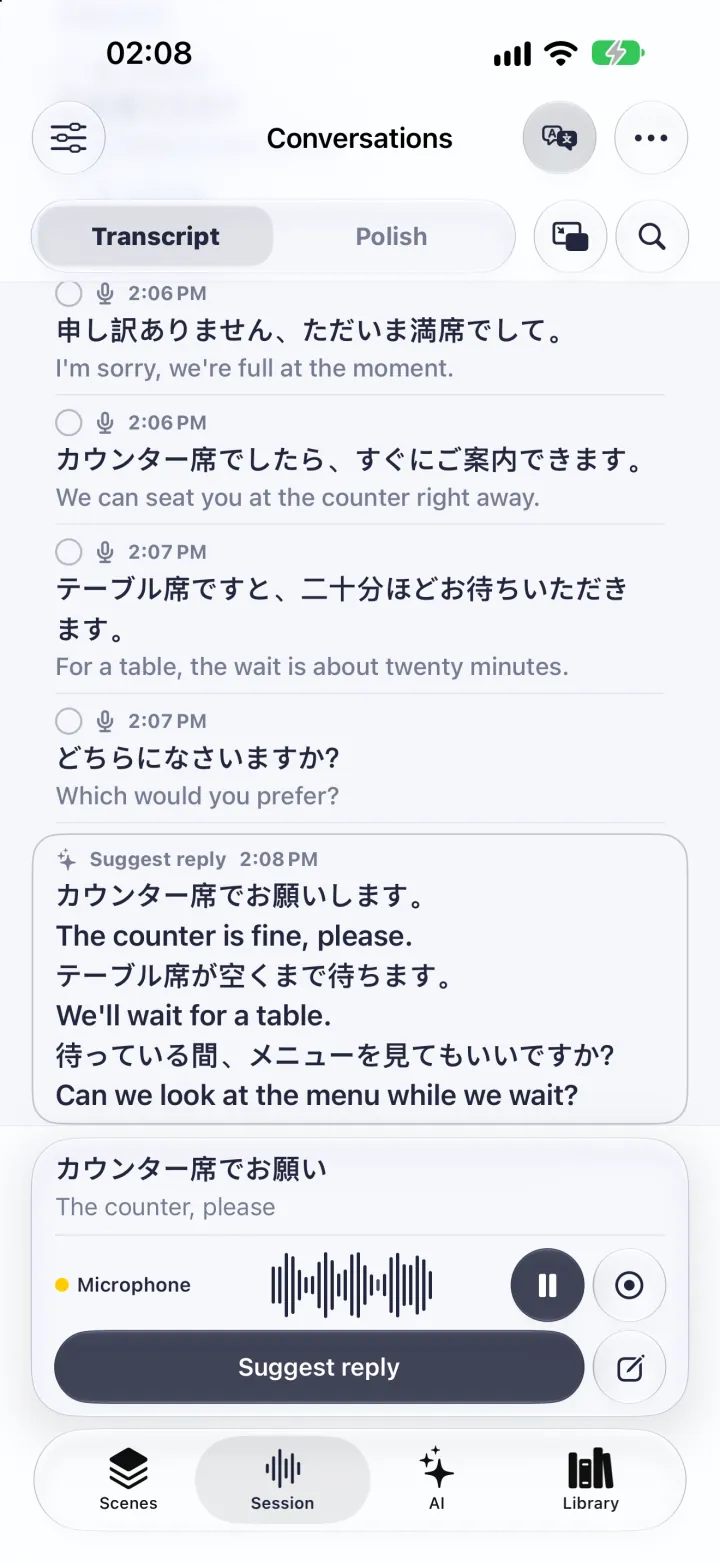
The suggested reply comes from an AI button that runs only when you press it. With the one-time purchase, AI uses Apple Intelligence on the device, so the device has to support it; cloud AI comes with the subscription.
Captioning the microphone works on any iPhone that runs Vocena. To caption audio from other apps on an iPhone, you need a physical iPhone running iOS 27.
Sources and checks
- Apple iOS 27 feature availability: captions and translation Checked
- Use Live Translation on iPhone Checked
- How to get the next generation of Apple Intelligence Checked
- Use Live Translation with your AirPods Checked
- Get live captions of spoken audio on iPhone Checked
Device testing
We have not tested these steps on a device. This guide is based on official documentation and Vocena's product information.