Fireflies Without a Bot: How Take Notes Works in the Desktop App
Get Fireflies notes without the Notetaker joining your call: how Take Notes works on Mac and Windows, what it doesn't save, the consent notices, and the Free plan limits.
Summary
- Fireflies' desktop app has Take Notes, which captures your computer's audio without inviting the Fireflies.ai Notetaker to the call.
- Take Notes keeps a transcript and notes but no audio or video file, and labels voices Speaker 1 and Speaker 2 instead of names.
- Its consent notices, such as a spoken consent message, start out turned on. If you turn them off, telling participants is up to you.
- The Free plan includes the desktop app, 400 minutes of storage and 20 AI credits a month. Downloading transcripts needs a paid plan.
We make Vocena, a live caption app. This guide is based on the Fireflies knowledge base and pricing page, read on October 1, 2026. We didn't install Fireflies or record a meeting with it.
On this page
Take Notes or the Notetaker
The Fireflies desktop app for Mac and Windows can capture a meeting in two ways, and its bot vs no bot guide lays out what each one leaves you with.
Invite Notetaker sends the Fireflies.ai Notetaker into the meeting as a participant that everyone sees. It saves audio and video you can play back later and labels speakers. Recording the meeting video needs Pro or a higher plan, according to the pricing page.
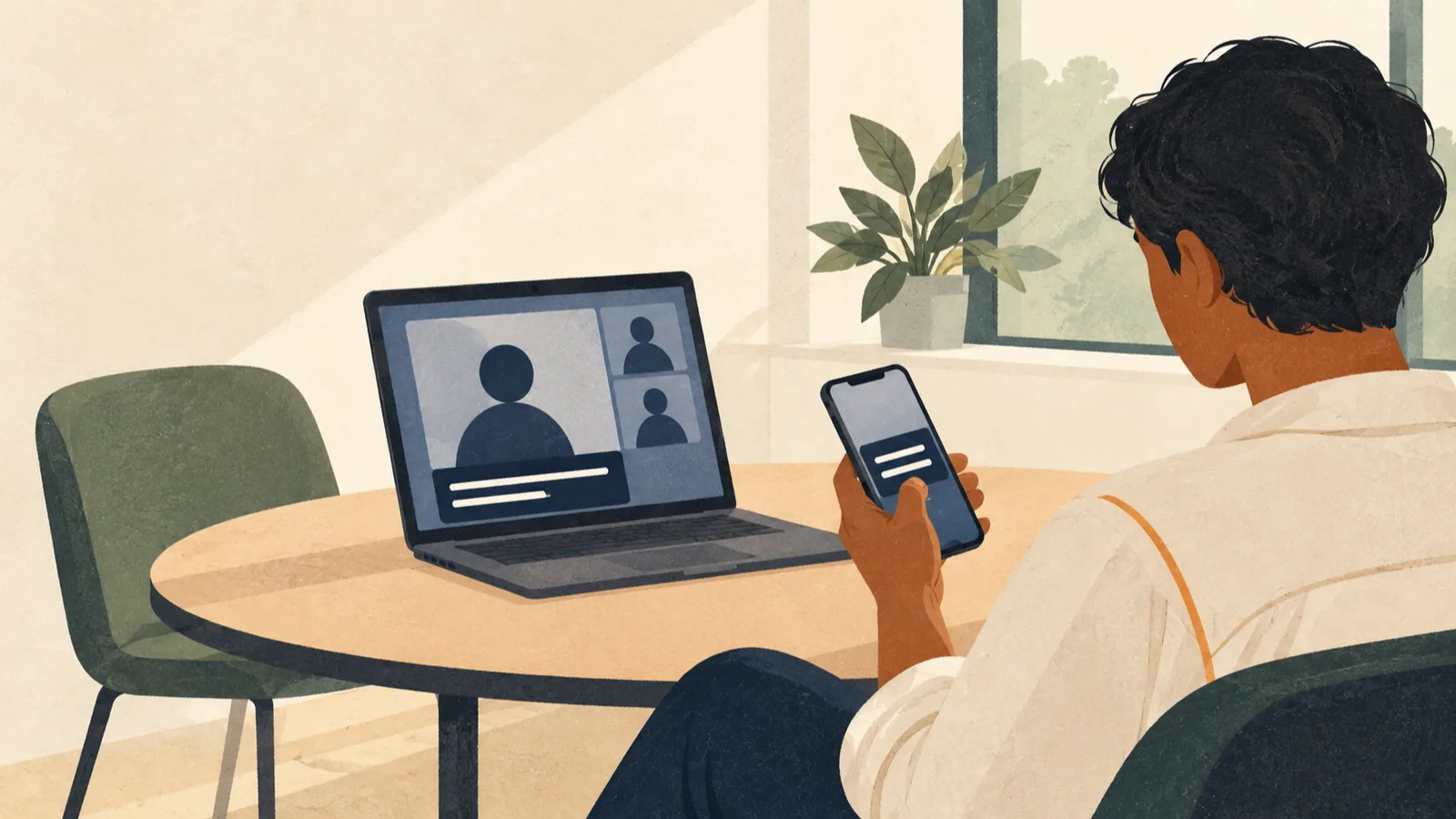
Take Notes captures the audio on your own computer and adds nothing to the call. The Take Notes guide lists what you get: a real-time transcript, AI notes, AskFred and your own manual notes. You don't get an audio or video file, and voices show up as Speaker 1 and Speaker 2 instead of names. Take Notes also works where the bot can't go: phone calls, WhatsApp, FaceTime, Discord and conversations in the room.
Pick Take Notes when you only need the notes and the transcript. If you'll want to listen back, or you need speaker labels, invite the Notetaker.
Record with Take Notes
- Install the Fireflies desktop app. The Fireflies pricing page lists it on every plan, including Free. Allow microphone access when it asks.
- Before the call, check that the Notetaker won't join on its own. The desktop app guide describes Auto-record calendar meetings in Settings → Meeting Preference, which sends the Notetaker into your scheduled meetings, and a sidebar that turns automatic capture on or off for each upcoming meeting. Turn it off for this one.
- Click Take Notes in the top-right corner of the app, as the Take Notes guide shows. The first time you do, and after an app update, a window called Get consent while taking notes opens before the session starts and asks how to tell the other people on the call. Then capture begins, and the floating pane shows the live transcript, AskFred and a Notes tab.
- Keep an eye on the capture. Fireflies' guide to what the desktop app saves says to check the capture pill, because if capture is interrupted, a no-bot session may not be recoverable.
- When the conversation ends, click Stop in the floating pane and choose Save Recording. Delete throws the session away. Fireflies then writes the summary, and the meeting opens in the app's Notepad. Later you'll find it on the Meetings page.
What you keep is the transcript, notes and summary. Take Notes doesn't make an audio or video file you can replay.
You don't have to click first. When the app detects a meeting, a notification in the top-right corner offers Take Notes or Invite Notetaker. Seeing that notification doesn't mean a bot has joined, and Take Notes doesn't invite one. Auto-record calendar meetings can, so check the participant list once the call starts. If the Notetaker is listed there, you're using bot capture.
To capture iPhone calls on a Mac, the desktop app guide says to turn on Calls from iPhone in FaceTime on both devices; Fireflies then records those calls through the Mac's audio.
What other people see and hear
Nothing joins the call, so Fireflies gives you ways to tell people. The Get consent while taking notes window lets you choose them, and the Take Notes guide describes each one. The choices depend on your system, and they start out turned on:
- On Mac and Windows, an audio consent message plays about 10 seconds after you start Take Notes. People hear it through your microphone.
- On a Mac, a message can be posted in the meeting chat. The desktop app guide says this currently works only in Microsoft Teams Business meetings.
- On Windows, the window offers to say "Taking notes" when your camera is on.
A separate setting, the Fireflies Watermark, adds a visible "AI Taking Notes" notice to your video; you turn it on and then pick Fireflies Watermark as your camera in the meeting app.
The Take Notes guide puts these switches under Settings → Meeting Preference → Recording, and your choices in the window become your defaults, which you can change there at any time. If you turn them off, Fireflies says informing participants and following recording laws is your responsibility.
When to invite the Notetaker instead
For a Zoom, Google Meet or Teams call where you want a recording, the desktop app guide has you open the sidebar in the app, paste the meeting link under Add Notetaker to Live Meeting, pick the language spoken (the default is English (Global)), and click Invite Notetaker. Then admit it like any other participant. Google Meet may list it under With potential risks; click the three dots next to it and choose Admit entry.
If a Notetaker meeting produced no notes, Fireflies' troubleshooting page lists the usual causes:
- Auto-join is set to join only when you invite [email protected], and you didn't.
- You weren't the host, and the host shares recaps with the owner only.
- The meeting lasted less than 3 minutes, which Fireflies doesn't process.
- The bot sat in the waiting room, or the meeting required a sign-in.
Processing can take 5 to 10 minutes after the call, so check the meeting status first.
A meeting in the room, without the desktop app
In a browser, Fireflies' web recorder records a conversation in the room from your computer, with no extra hardware:
- Sign in at app.fireflies.ai.
- Open the dropdown arrow next to Capture and choose Start Recording.
- Add a title, then click Start Recording in the recording window.
- Check that the timer is counting up. Click Stop when you're done.
Free plan storage, AI credits and downloads
Fireflies' Free plan page and pricing page list:
- unlimited transcription of meetings Fireflies joins automatically, with limited AI summaries
- 400 minutes of stored meetings, recordings and uploads; delete old ones to make room
- 20 AI credits a month for features such as AskFred, AI Soundbites and AI Skills
- uploads of MP3, MP4, WAV or M4A files up to 100 MB and 150 minutes each; each file uses one transcription credit
- a 2-hour recording limit per meeting
Downloading transcripts needs a paid plan. Pro is $10 per seat a month billed yearly, or $18 monthly, and adds 8,000 minutes of storage and downloads of transcripts, summaries and recordings.
The desktop app guide says Take Notes detects more than one language in a meeting; for the Notetaker, you pick the language when you invite it. Either way, check names, numbers and the passages where people switched languages before you send the notes on.
Other botless recorders, and live captions
For another botless meeting recorder on a Mac, see how to use Otter on a Mac; for a browser extension, see using Tactiq in a browser or on a Mac.
Take Notes already shows a live transcript during the call. If you only want free captions on screen without signing in to anything, Vocena captions your Mac's system audio and microphone on macOS 15.5 or later, and it doesn't join the meeting.
Sources and checks
- Bot vs. No Bot: Which Capture Am I Using? Checked
- Fireflies.ai Pricing Checked
- Does the Desktop App Save an Audio Recording? Checked
- How to Record Meetings Without a Bot on the Fireflies Desktop App Checked
- Getting Started with the Fireflies Desktop App Checked
- Did not receive the meeting notes/ transcript? Troubleshoot transcription issues Checked
- How to Record Offline & In-Person Meetings with Fireflies Web Recorder Checked
- What's included in the Fireflies Free plan Checked
Device testing
We have not tested these steps on a device. This guide is based on official documentation and Vocena's product information.