Voice Memos transcription: where to find it and why it's missing
Where Voice Memos shows a transcript on a Mac, how to copy and search it, what Apple says your Mac needs, and what to check when the transcription is missing.
Summary
- On a Mac, select a recording in Voice Memos and click the Transcription button. You can copy the text and search it.
- Apple's Mac guide calls for macOS Sequoia and a Mac with Apple silicon, and says transcription isn't available in every country or region.
- Apple's Mac guide lists no languages and no length limit. The iPhone and iPad steps are on separate Apple pages.
On this page
Mac: read the transcript live or afterwards
Apple's Voice Memos guide for Mac describes two moments when you can read the text. To read it while you record:
- Open Voice Memos and click Record.
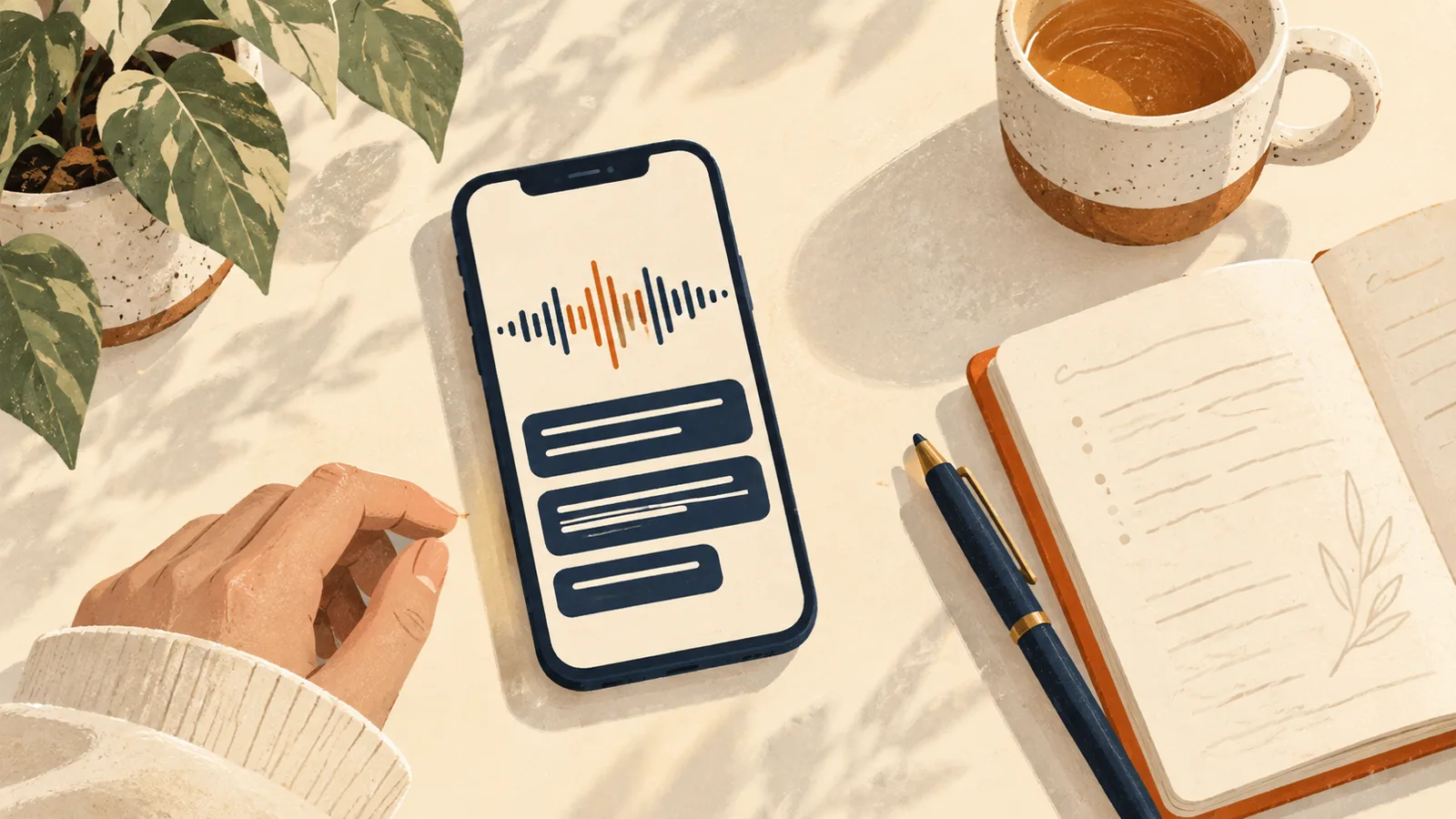
- Click the Transcription button. The words appear as they're spoken, and the word being said is highlighted.
- Click the same button to go back to the waveform.
- Pause or resume if you need to, then click Done to save the recording.
For a recording you already have, select it in the list and click the Transcription button. If the button isn't there or the transcript stays empty, go to the checks further down.
Copy the text and search it
Select the words you want in the transcript, Control-click, and choose Copy. Paste them into any other document.
The search field looks through recording titles and through transcripts, so you can find a memo by something that was said in it, even if the title says nothing about it. Select a word in a transcript and the playhead jumps to that point in the audio. That's the quickest way to replay a sentence before you quote it.
iPhone and iPad
Apple documents these on their own pages: View a Voice Memos transcription on iPhone and View a Voice Memos transcription on iPad. Open the one for your device before you troubleshoot. What the Mac needs, listed below, tells you nothing about which iPhones or iPads qualify. If you wanted Google's Recorder app on an iPhone, see what to use on an iPhone instead.
If there's no Transcription button or no text on a Mac
Apple's Mac guide states three conditions. Check them in this order.
- Apple silicon. The Sequoia edition of the guide says speech can be transcribed on "a Mac with Apple silicon" running macOS Sequoia. An Intel Mac doesn't meet that.
- macOS version. The current guide covers macOS Sequoia (15), macOS 26 and macOS 27. On anything older than Sequoia the guide doesn't describe the feature at all, so install the update if your Mac can run it.
- Country or region. Apple says audio transcription isn't available in all countries or regions, and the page doesn't say which ones are left out. If your chip and macOS are fine and the button is still missing, this is the only condition on Apple's list left to explain it.
Language is the next thing to test, and the Mac guide gives you little to go on. It lists no supported languages and describes no language setting. Record a short stretch of clear speech in the language of the problem recording with the Transcription button on. If text appears in one language and stays empty in another, language is the limit, and there's nothing in the guide to switch.
Length works the same way. Apple's page states no maximum recording length, so a long recording that stays blank isn't explained by a published limit. If a short test recording gets a transcript and the long one doesn't, tell Apple Support exactly that.
When the chip, macOS and region all check out and a short test recording still shows no text, contact Apple Support and give them your macOS version and your Mac's chip.
Other ways to get the text
Pick by what you have in front of you.
- An audio file on your Mac. Start with the MacWhisper guide, which covers turning a file into text on a Mac.
- A meeting you want transcribed by an online service. The Notta guide covers one such service. If you're weighing Otter, read Otter's free plan limits first so you know how far the free plan gets you.
- Text while people are talking. Vocena, the app we make, shows captions as people speak, with a translation under each line if you want one. It runs on iPhone and iPad (iOS or iPadOS 26 or later) and on a Mac (macOS 15.5 or later). Live captions are free with no time limit. Translation is paid. Vocena can also turn an imported audio file into text and separate the speakers, which is paid as well (a one-time purchase or the subscription). Captioning sound from other apps works on a Mac, and on an iPhone it needs a physical device running iOS 27.
For other Mac apps that show captions, see live caption apps for Mac. To run a saved recording through Word instead, see turning a recording into text in Word.