Notta vs Otter: Languages, Meeting Workflows, and Plan Costs
Notta transcribes 58 languages and has a two-language mode with 23 to pick from; Otter covers six, with a French–English exception. Compare free limits, prices and exports.
Summary
- Notta's bilingual mode picks two of 23 languages, with up to 4 free uses a month and a paid add-on for Pro, Business and Enterprise plans.
- Otter uses one language per recording, except that with French as the default it also transcribes English.
- Otter transcribes six languages: English, Spanish, French, German, Japanese and Chinese (Simplified). Notta lists 58.
- The free plans differ: Notta allows 120 minutes a month, up to three minutes per conversation; Otter allows 300 minutes and three lifetime file imports.
We make Vocena, a personal caption app. Everything here about Notta and Otter comes from their own help and pricing pages, read on October 1, 2026. We didn't run the same recording through both or complete a purchase, so there's no accuracy or speed winner here. The prices below are the published rates; check the total shown for your account before you pay.
On this page
Languages
Otter's supported languages page lists six transcription languages: English, Spanish, French, German, Japanese and Chinese (Simplified). For Chinese, its language settings article says it supports spoken Mandarin with Simplified Chinese output, and it notes that German and Chinese (Simplified) are still being finished. To get text in another language, Otter suggests asking Otter Chat to translate the conversation.
Notta's language list depends on the feature: 58 languages for ordinary transcription, 42 for translating a finished transcript, 36 source and 61 target languages for real-time translation, and 23 for bilingual transcription. Portuguese, for example, is in Notta's transcription list and not in Otter's.

One meeting, two languages
Otter transcribes in one language per recording. Its language settings article has you pick it in Account Settings before you start, and changing it halfway through doesn't change that recording. There's no way to reprocess a finished conversation in another language; Otter's workaround is to export the audio, switch the language and import it again, which uses one of your file imports. The one exception is French and English: with French as the default, Otter switches to English when it hears it.
Notta's bilingual transcription guide has you choose two languages before you start:
- Click Instant record and choose Bilingual transcription.
- Select the two languages. Turn on Bilingual Translation if you also want a translation.
- Click Record and transcribe.
The same guide covers meetings joined by the Notta bot and uploaded files. For uploads, bilingual translation isn't supported, and recordings added through a link can't be transcribed in bilingual mode.
The guide says bilingual transcription is available on all plans. The pricing page lists up to 4 free uses a month, and sells a Bilingual Transcription & Translation add-on for Pro, Business and Enterprise users at $9 a month billed annually ($108 a year) or $15 billed monthly. Check what your own account shows before you plan a real meeting around it.
Free plans
Notta's pricing page lists 120 transcription minutes a month on the free plan, up to 3 minutes per conversation and 50 file uploads a month. Use it to try a short sample before you pick a plan for full meeting transcripts.
Otter's Basic plan limits are 300 minutes a month, 30 minutes per conversation, three file imports per account (not per month) and the 25 most recent conversations. A longer recording keeps going, but you can read only the first 30 minutes of the transcript unless you upgrade. Our guide to Otter's free plan limits goes through each of them.
Paid plans
On Notta's plan comparison, Pro is $8.17 a month billed annually ($97.99 a year). It includes 1,800 transcription minutes a month, recordings up to 5 hours, 100 file uploads a month, transcript export and transcript translation. More bilingual use comes from the separate add-on above.
Otter's pricing page lists Pro at $16.99 per user per month billed monthly, or $8.33 per user per month billed annually. A lower starred price is only for India-issued credit cards. Pro allows meetings up to 90 minutes and 10 file imports a month.
For teams, Notta Business adds usage reports, CRM and Zapier integrations and advanced data security controls; Otter Business adds admin features such as activity logs and usage analytics. If you import a lot of interviews or run long meetings, the meeting length and import limits matter more than the few dollars between the annual prices.
Speaker labels and exports
Both Notta's pricing page and Otter's pricing page list speaker identification on the free plan. Otter's comparison table lists MP3 and TXT export for Basic, with more formats on paid plans. Notta lists transcript export as a Pro feature. If people often talk over each other in your meetings, use a recording like that to check the speaker labels.
If you need captions for yourself, not a team workspace
If what you want is to read a meeting as it happens on your own screen, you may not need either service. On a Mac with Apple silicon, Apple's Live Captions guide for Mac describes a built-in caption window for sound playing on the Mac or the microphone, in a limited set of languages and regions.
Vocena, our app, is another option. It runs on Mac (macOS 15.5 or later), iPhone (iOS 26 or later) and iPad (iPadOS 26 or later). Live captions are free, with no time limit and no sign-in. They mark each line as microphone or system audio, not by person. To caption audio from other apps on an iPhone, you need a physical iPhone running iOS 27. Translation and transcribing imported recordings are paid. With the Qwen local model, the transcript of an imported recording is split by speaker; Apple's speech recognition doesn't split speakers. You can play an imported recording from any line and export text or SRT. AI answers appear only when you press a button, and with the one-time purchase they need a device that supports Apple Intelligence.
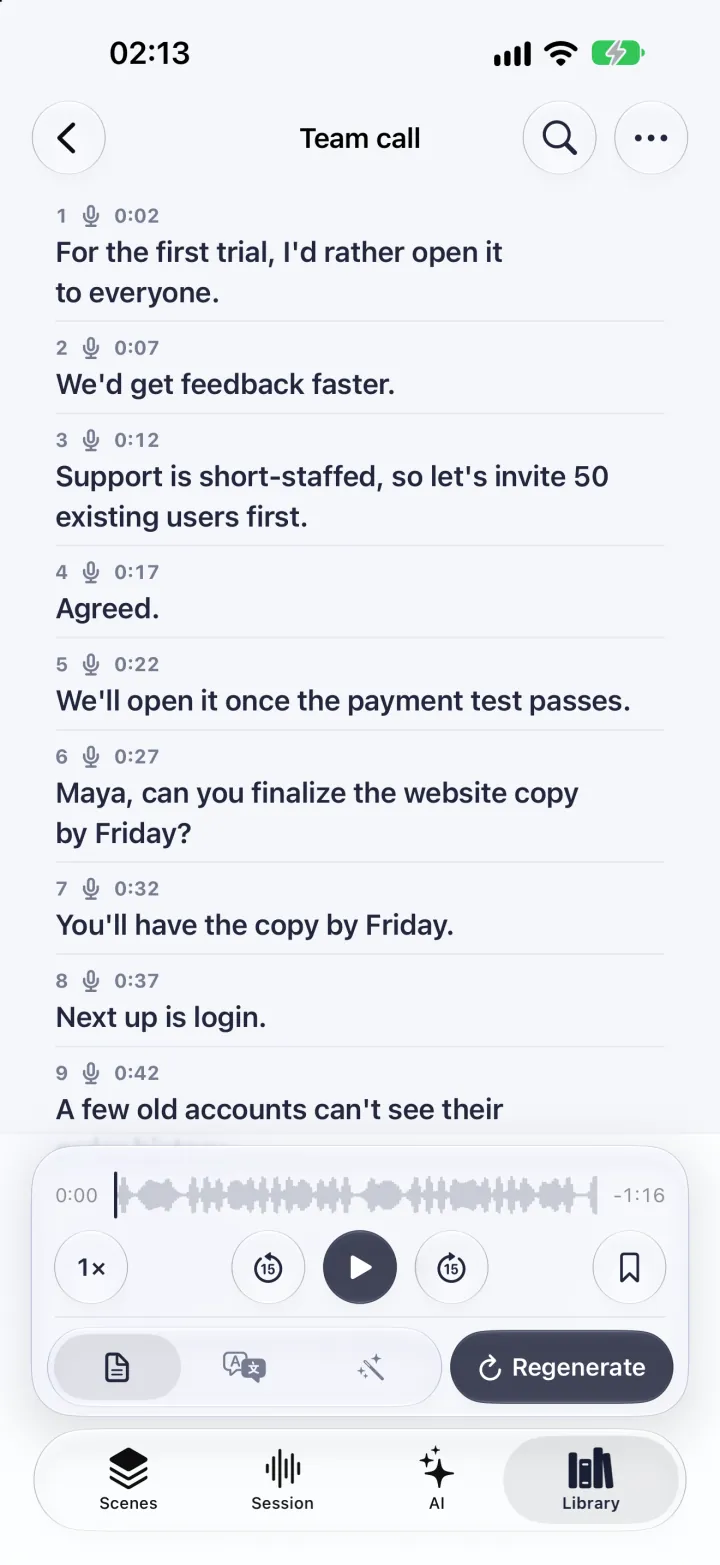
The picture shows an imported recording on iPhone, with demo data.
Vocena doesn't join meetings as a bot. For apps that keep audio on the Mac, see our guide to offline Otter alternatives for Mac.
Try both with the same recording
- Pick a recording you're allowed to use, with your real languages, microphone and pace. On Notta's free plan, keep it under 3 minutes, the per-conversation limit on its pricing page. Uploading it to Otter Basic uses one of the account's three imports, as Otter's Basic plan limits article explains. Include an interruption if your meetings have them.
- Write down what has to come out right: names, dates, amounts, and who agreed to do what.
- Use the same mode in each app: live against live, or uploaded file against uploaded file.
- Check the original transcript first, then the speaker labels, then any translation. A fluent translation can carry over a mistake from the transcript.
- If your plan includes export, export the result and open it where you'll use it. Notta lists transcript export under Pro; Otter's plan comparison lists TXT export for Basic.
- Note the plan, language settings, device and date next to what you saw.
If a teammate will use the notes, have them look at the sample too.
Sources and checks
- Notta Pricing Checked
- What languages does Notta support? Checked
- Bilingual transcription & translation | Web Checked
- Pricing | Otter.ai Checked
- Conversation, import, and app limits on the Basic free plan Checked
- Supported languages Checked
- Transcribe conversations in English, Spanish, French, German, Japanese, or Chinese (Simplified) Checked
- Get captions of spoken and computer audio on Mac Checked
Device testing
We have not tested these steps on a device. This guide is based on official documentation and Vocena's product information.