Offline Otter Alternatives for Mac: Captions and Transcription
Otter's app transcribes offline recordings only after they upload. To keep speech on your Mac, compare Apple Live Captions, MacWhisper, Vocena and Notta's local mode.
Summary
- Otter's mobile app can record offline, but it only transcribes after you reconnect and the file uploads.
- To read speech as it plays, use Apple Live Captions. It needs an Apple silicon Mac, a supported language and region, and a one-time language download.
- For recordings you already have, use MacWhisper with a local model you download while online.
- Vocena (macOS 15.5 or later) saves and exports live captions. Speech is recognized on the Mac; cloud recognition needs a subscription and uploads audio.
We make Vocena. What we say about Apple, MacWhisper, Otter and Notta comes from their own help and product pages, read again on October 1, 2026. We didn't run a network-off test, compare accuracy or speed, or buy any paid plan.
On this page
Otter without a connection
Otter's mobile app can record offline, but its transcription processing FAQ says processing starts only after you reconnect and the file uploads. If you need the text while you're still offline, you need an app that turns speech into text on the Mac itself.
Apple Live Captions
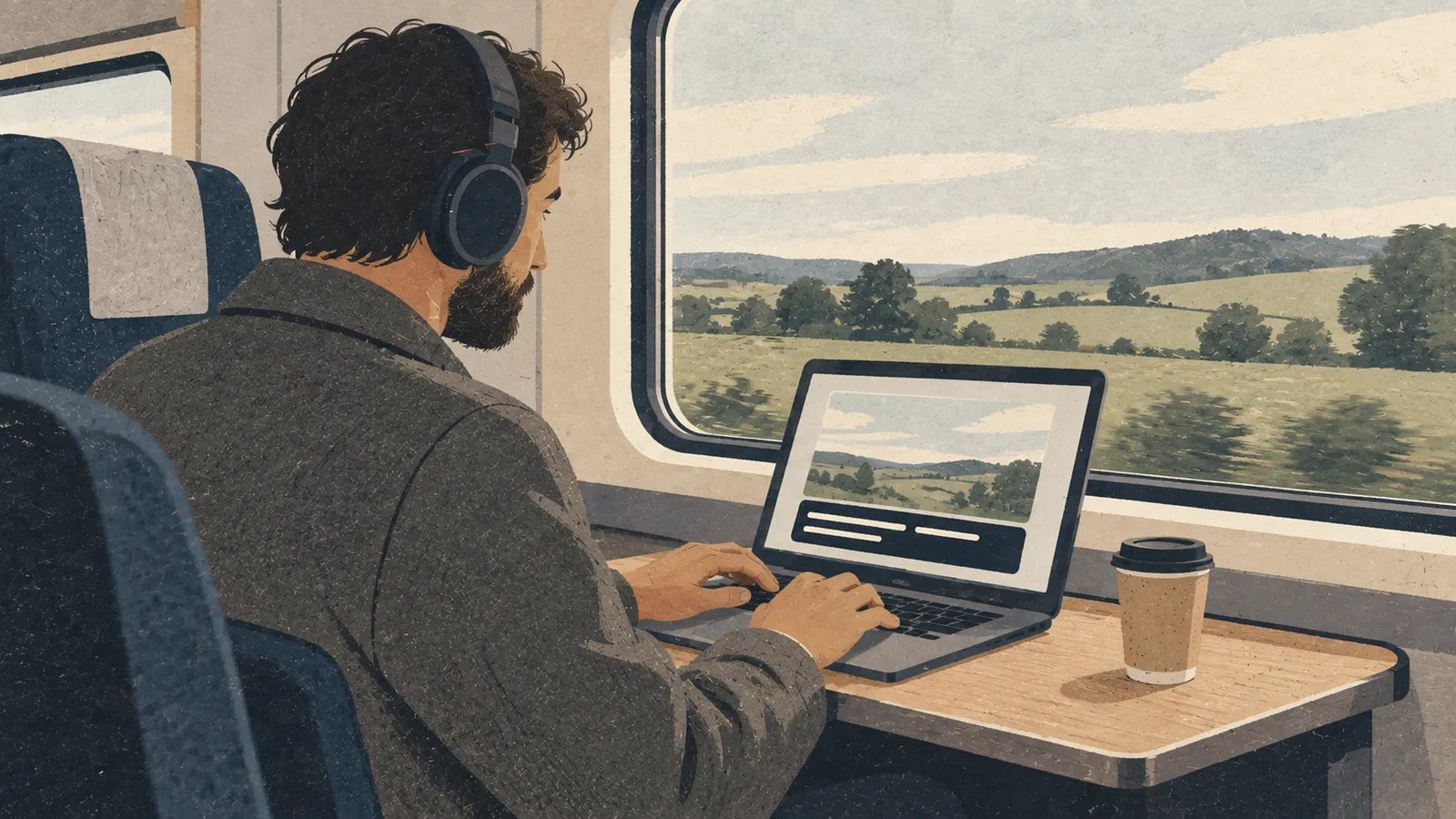
If you only need to follow what's being said, try the caption window built into macOS before installing anything. Apple's Live Captions guide for Mac says the audio is processed on the device. Live Captions needs a Mac with Apple silicon, and it's available only in some languages, countries and regions.
- Open System Settings → Accessibility → Live Captions and turn it on. The first time, the Mac downloads language data, so do this while you're online.
- From the Live Captions menu in the menu bar, choose Computer Audio for sound playing on the Mac, or Microphone for people speaking near it.
- Play a few seconds of the video or call and check that the captions follow that source before the part you care about starts.
If no captions appear, check the source you picked and whether your language and region are supported before you pay for another app.
Live Captions puts text on the screen, and that's all Apple's guide describes. Nothing in it covers saving the captions, exporting them or labeling speakers, so if you need a transcript after the meeting, use one of the apps below. Apple also says the accuracy of Live Captions may vary and that it shouldn't be relied on in high-risk or emergency situations. Confirm anything important with the person who said it.
MacWhisper
MacWhisper is the one to try when the audio is already a file: an interview, a voice memo, a call you're allowed to transcribe. The help article Keeping Transcriptions Private says transcription, including speaker identification, runs on your Mac by default once you've downloaded a transcription model. Download the model while you're online.
The same guide lists what leaves the Mac:
- If you pick a cloud transcription provider, your audio goes to that provider.
- Its third-party translation option sends the transcript to that translation service.
- AI prompts sent to a remote provider include transcript text. A local AI provider is the exception.
Look at each of these settings before you open a sensitive recording, and check which features your licence includes before you buy.
Vocena
Vocena is for following speech and going back over it yourself. It isn't a meeting bot and doesn't join calls.
On a Mac with macOS 15.5 or later, it captions the microphone, the Mac's system audio, or both at once, and shows the captions in a floating window on the desktop. Live captions are free, with no time limit and no sign-in. Speech is recognized on the Mac, with Apple's speech recognition or the Qwen local model, which you download first. Cloud recognition comes with the subscription and uploads the audio.
- Translation and transcribing imported audio are paid. Free captions don't include them.
- Live captions mark each line as microphone or system audio, not by person. With the Qwen local model, the transcript of an imported recording is split by speaker; Apple's speech recognition doesn't split speakers.
- Every session is saved to the library, but audio is recorded only when you start recording, and you stop it yourself.
If you recorded the audio, click any line in the library to play it from that point. You can export the text as TXT; SRT subtitles with timestamps need recorded audio. You can also export the recorded audio.
Local Mode
Recordings, captions and the library stay on your device by default. Local Mode is one switch that turns off all uploads and pauses cloud recognition, translation, polishing and AI. On-device recognition keeps working, and so does on-device translation, a paid feature that on a Mac needs macOS 26 or later. Signing in, downloading models and language packages, and any cloud feature need a connection, so download what you'll use before you go offline.
Notta
Notta Desktop, which Notta still labels an early release on Mac, has a Privacy Mode that transcribes on your computer, so meeting audio doesn't have to be uploaded. The help article What is Privacy Mode Recording? says you first choose a local storage folder and install an offline speech model. It lists Privacy Mode for the Pro, Business and Enterprise plans, so it isn't a free option, and says availability may vary by billing method. Check that your plan includes it before you pay.
Set it up while you're online: sign in, pick the folder and download an offline speech model. After that it transcribes without a connection, but the app checks your licence about once a month, and if that check can't run you may have to reconnect before you can keep using it.
Notta offers two local engines. Its own offline model needs 4 GB of RAM and 2 CPU cores; the help article lists English, Japanese, Simplified Chinese and Cantonese for it, and the feature page adds Korean. If your Mac runs macOS 26 or later, you can pick Apple Speech Analyzer instead, which the help article lists for 11 languages. The two pages also describe the switch into Privacy Mode differently, so check the languages and the menu in your version of the app.
If what bothers you is Otter's free allowance, Otter's free plan limits may show you don't need to switch at all.
Test offline with your own recording
Find out with a short sample, not by unplugging halfway through a meeting that matters.
For live captions, download what the app needs while you're online: the language data that Apple's Live Captions guide for Mac says the first setup downloads, or Vocena's local model if you use one. Pick the source (Computer Audio or Microphone in Apple Live Captions, system audio or microphone in Vocena), then disconnect and play your own recording. Check whether new captions keep appearing. If you use Vocena and want the text afterward, also check that the session was saved and try the export you need.
For an app that transcribes files:
- Pick a short recording you own, with the kind of speech you usually deal with. Write down the names, numbers and terms in it that you'd need to get right.
- While you're online, download the model or language data, and sign in or activate your licence.
- Pick the local model you downloaded. Check the translation, AI and export settings separately.
- Turn off Wi-Fi and unplug Ethernet. Transcribe the sample, and make sure the text is new, not a transcript from an earlier run.
- Close and reopen the result. If the app can export, export it and open the file in another app.
- Note the Mac, macOS version, app version, model, language, and which steps worked. Then reconnect.
Test each job you'll rely on. A file test doesn't show how live captions, translation or an AI summary behave offline. A microphone test doesn't show that a video's sound reaches the app either.
If nothing comes out, check that the sample has audible speech, that you picked the right input, and that the model finished downloading. If text comes out with mistakes, go through it against your notes: names, numbers, switches between languages, and who was speaking. To compare two apps, run the same recording through each in the mode you'll actually use.
Sources and checks
- Get captions of spoken and computer audio on Mac Checked
- MacWhisper Checked
- Keeping Transcriptions Private Checked
- Transcription processing time FAQ Checked
- Private Offline Transcription - Notta Desktop Privacy Mode Checked
- What is Privacy Mode Recording? – Notta Help Center Checked
Device testing
We have not tested these steps on a device. This guide is based on official documentation and Vocena's product information.