Are Zoom Translated Captions Free? Host and Plan Requirements
Zoom translated captions depend on the host's plan or an assigned add-on. See which plans qualify, how attendees pick a language, and what to check when Translation is missing.
Summary
- Not on every account. The host needs Business Plus, one of three Enterprise plans, or the Translated Captions add-on assigned to them.
- Zoom's setup guide doesn't list an add-on price; it says to contact Sales.
- Attendees don't need an eligible plan. In the meeting each person picks a caption language from the pairs the host set up.
- Translated captions need the Windows or macOS desktop app or the web app; Zoom's requirements don't list the phone apps.
We make Vocena. The Zoom details below come from three Zoom support articles, read on October 1, 2026. We didn't buy the add-on, ask Sales for a quote or host a translated meeting.
On this page
Who has to pay
Zoom's guide to enabling translated captions lists what the host's account must be:
- Zoom Workplace Business Plus,
- Zoom Workplace Enterprise Essentials, Enterprise Plus or Enterprise Premier,
- or any account where the host has been assigned the Zoom Translated Captions add-on.
There's no price on that page. It says to contact Sales for pricing and to buy the add-on.
It's the host who needs the plan, not each person in the meeting. Zoom's page on viewing captions in another language says translated captioning requires the host to be on one of those plans or to have the add-on. Everyone else can then choose a caption language for themselves, and one person's choice doesn't change anyone else's.
What that means for you:
- You're joining someone else's meeting. Upgrading your own account won't add translation to their meeting. Ask the organizer whether translated captions will be on and whether your language will be available.
- Your company already pays for Zoom. Check the plan name on the account of the person who will host. "Enterprise" on its own isn't enough; it has to be one of the three Enterprise plans above.
- Your company bought the add-on. It has to be assigned to the host. Ask the admin to check the host's account, not just the purchase.
Zoom also says some accounts in regulated industries, such as healthcare and higher education, may not have access to translated captions. If that's you, ask your Zoom account contact before you buy anything.

Turning it on for your own meetings
If you host on an eligible account, Zoom's steps for your own account are:
- Sign in to the Zoom web portal, click your profile picture and choose My account.
- Click Settings, then Meeting.
- Under In Meeting (Advanced), turn on Translated captions. If a dialog asks you to confirm, click Enable.
- Click Edit translation languages. Tick each language people will speak under Speaking Language, pick the caption languages under Translate to, and click Save.
Automated captions must be on before Zoom lets you turn on translated captions. If the Translated captions switch is grayed out, it has been locked at the group or account level, and only an account owner or admin can change it there.
Attendees can only choose from the language pairs you saved, so set them before the meeting. Zoom's list of supported languages is on the same page. Dialects of the same language can't be translated into each other, for example French (France) to French (Canada).
Choosing your caption language in the meeting
Zoom's viewing guide lists the Zoom desktop app for Windows or macOS (at Zoom's global minimum version or later) or the Zoom web app. It doesn't list the Android or iOS apps, although Zoom's page on ordinary captions does. If you're on a phone and Translation isn't in the caption menu, join from the desktop app or the web app instead.
In the meeting:
- Click Show Captions in the meeting toolbar. If it isn't there, click More, then Captions.
- Click the up arrow next to Show Captions.
- Under Captions and translation, turn on Translation and pick the language you want to read.
- Click Save.
Zoom keeps your choice for future meetings.
The speaking language is a separate setting. By default Zoom assumes the speaker is using English, and a speaker who presents in another language can change the language the captions are generated from. Changing it doesn't translate anything. If the captions don't match what's being said, check the speaking language before you change your own language.
Zoom's guide to enabling translated captions also says translated captions may not be accurate. If a misunderstanding would matter, check key points with the speaker or arrange a human interpreter.
If Translation isn't in the caption menu
Try these in order. Each one rules out a different cause.
- No Show Captions at all. According to Zoom's caption guide, you can turn captions on if the host hasn't disabled or restricted them for the session. Ask the host.
- You're on a phone or tablet. Zoom's page on viewing translated captions list the Windows or macOS desktop app and the web app, so join from one of those, and update the desktop app if it's older than Zoom's global minimum version.
- The host's account. Zoom's guide to enabling translated captions requires one of the plans above, or the add-on assigned to the host.
- The host's settings. Both Automated captions and Translated captions must be on in the web portal.
- Your language isn't offered. The host needs to add that language pair under Edit translation languages before the next meeting.
When you ask the organizer or IT for help, say which of these you've already checked and exactly what you see: no Translation switch, a switch without your language, or captions in the wrong language.
After the meeting
None of the three Zoom pages we read covers saving translated captions. If you need a translated record afterward, ask the organizer what Zoom will keep and run a short test meeting first. If your meetings are on Teams instead, our guide to saving Teams captions covers what Teams keeps.
Captions on your own screen
If the host can't turn on translation, you still need to follow the call. Vocena runs on Mac (macOS 15.5 or later) and on iPhone and iPad (iOS or iPadOS 26 or later). On a Mac it shows free live captions of the system audio or the microphone, with no time limit and no sign-in. It doesn't change what Zoom shows anyone else, and it doesn't unlock Zoom's feature.
Translation in Vocena is paid. The $39 one-time purchase adds Apple's on-device translation (on a Mac, macOS 26 or later) and translation with Apple Intelligence on devices that support it. The $10 monthly subscription adds cloud translation. Speech is recognized on the device by default; audio or text leaves it only if you choose a cloud model. To caption audio from other apps on an iPhone, you need a physical iPhone running iOS 27. Before a meeting, play some meeting audio and check that captions appear.
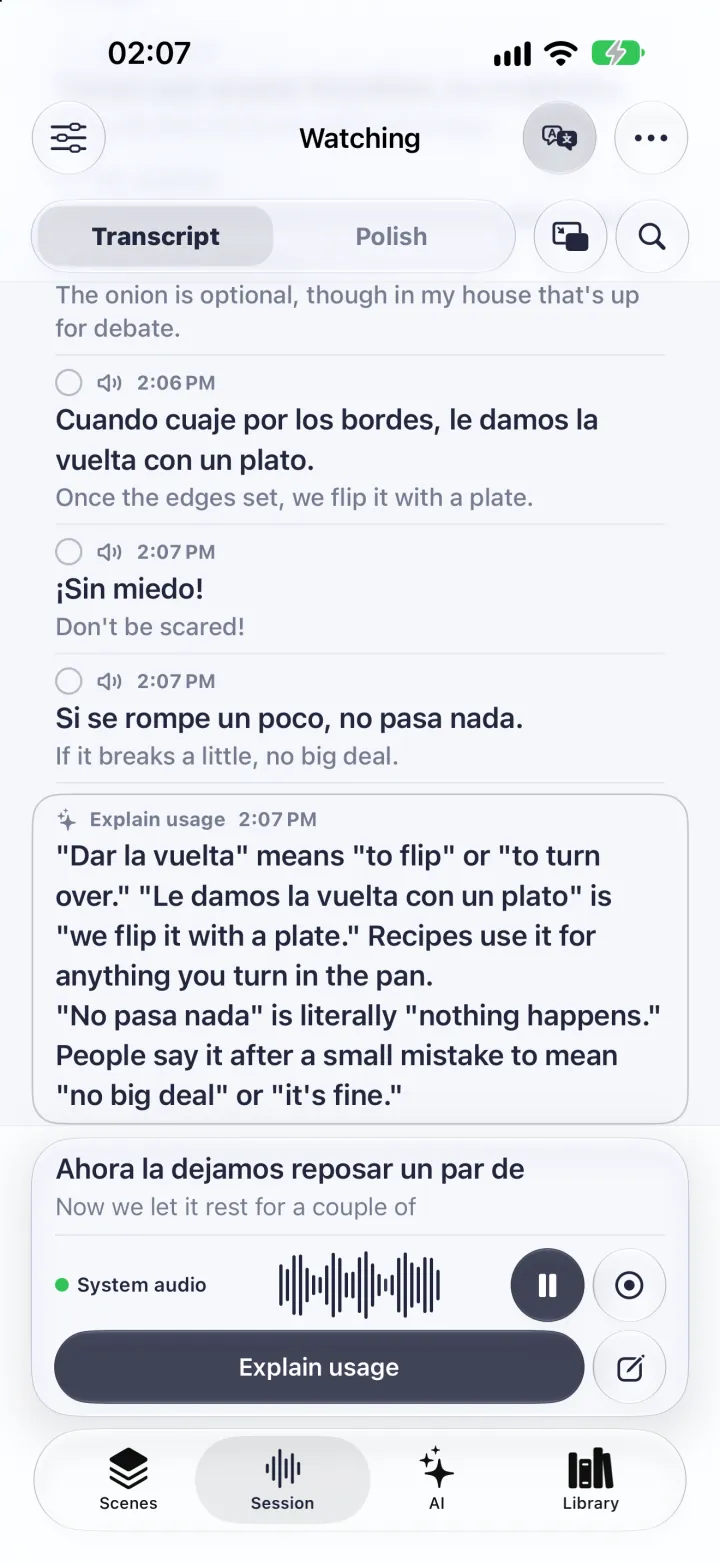
The picture is the iPhone app with demo data from a cooking video, not a Zoom meeting.
Vocena records audio only when you start a recording yourself. Check with the organizer before you keep your own record of a meeting.
Sources and checks
- Enabling and configuring translated captions Checked
- Viewing captions in another language Checked
- Viewing captions in a meeting or webinar Checked
Device testing
We have not tested these steps on a device. This guide is based on official documentation and Vocena's product information.